Sunday, June 30, 2019

How to get started with Keyboard Maestro on Mac

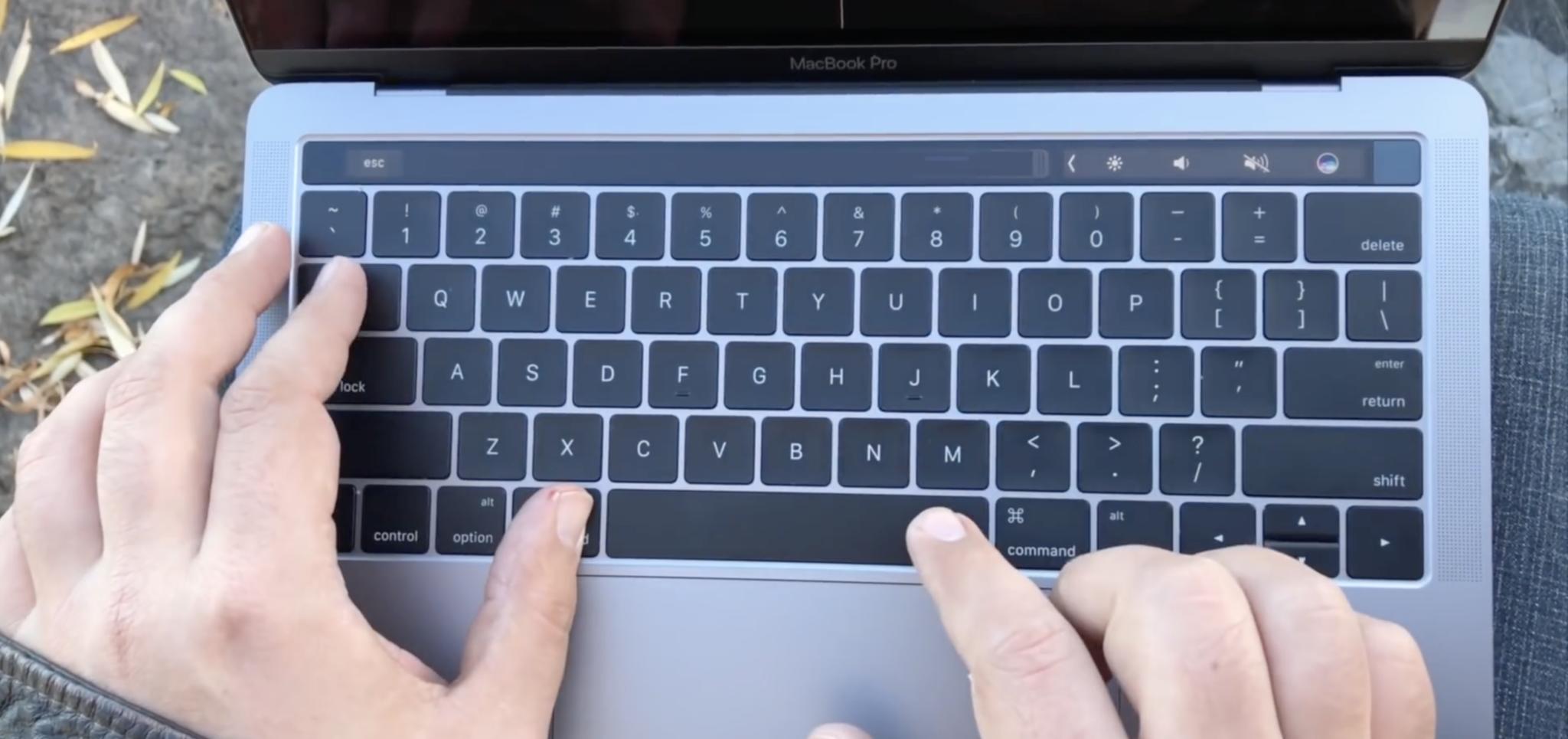
Creating macros on your Mac is incredibly easy with Keyboard Maestro and we show you the basics right here.

Keyboard Maestro is a super-charged $36 macro creation application that, if you ever try it, could (and probably should) be an essential part of your daily work routine.

An Introduction to Keyboard Maestro

Keyboard Maestro is so powerful that we’re going to spend a few days here looking at the application’s features, play with some of the productivity tools baked in to the app, create some macros of our own, create new keyboard shortcuts to trigger those macros, create palettes to trigger macros with the click of a button, and gain a solid understanding of just how powerful creating a few macros can be in helping you simplify repetitive tasks.

Following is a short list of just a few of the things you can do with Keyboard Maestro:

  • Launch Applications
  • Switch applications
  • Switch windows
  • Run AppleScripts
  • Copy, move, rename, trash, and delete files
  • Manipulate windows
  • Create application and macro palettes
  • Add boilerplate text to email and other documents
  • Send SMS or iMessages
  • Control iTunes

This list is by no means complete, No joke, there’s almost nothing you can’t do with Keyboard Maestro, so let’s go!!

What You Need To Get Started

The current version of Keyboard Maestro requires that you’re running Yosemite (10.10) or later on your Mac. Here’s how you can check to see if Keyboard Maestro will work on your Mac:

  1. Click the Apple Menu
  2. Select About This Mac
  3. Verify that you Mac says Yosemite with a version number of at least 10.10 or later just below your operating system name

If it does, download Keyboard Maestro using this link.

If it doesn’t, not to worry, you may still be able to perform most of what we talk about here using an older version of Keyboard Maestro, which you can download here.

Install Keyboard Maestro

After Keyboard Maestro downloads, drag the application from your Downloads folder to your Mac’s Applications folder.
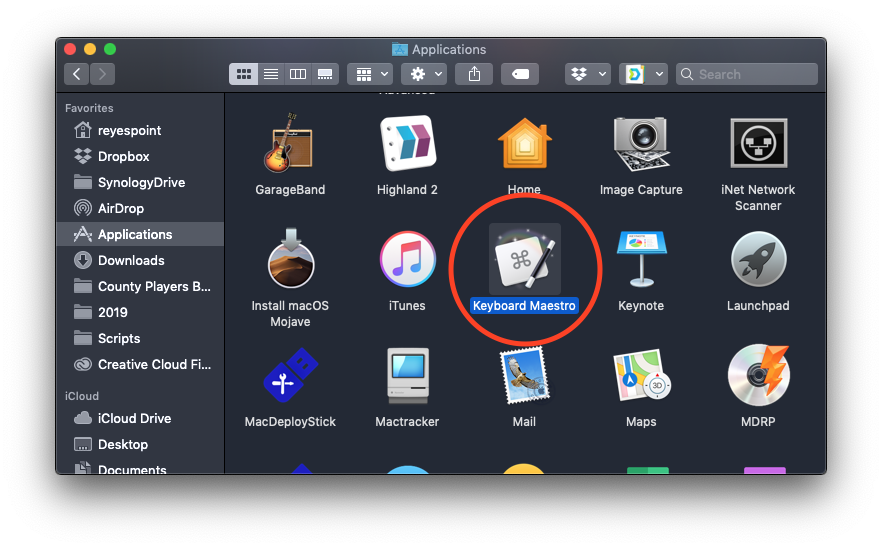
Once there, give it a double-click to open it.

Change Your System Settings

Because Keyboard Maestro performs some of its magic by monitoring your keyboard input you’re going to need to allow the application to have access to your keyboard input information. The first time you launch Keyboard Maestro you’ll see a message saying that it requires Accessibility Access.
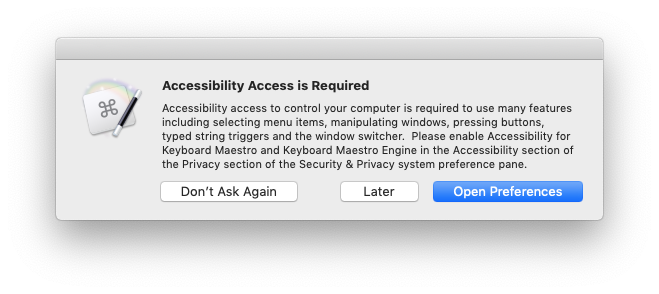
When you see this, click the button that says, Open Preferences.

When System Preferences opens you should see something like this:

NOTE: If this isn’t what System Preferences looks like for you, you can:

  1. Open System Preferences.
  2. Open the Security & Privacy preference.
  3. Click the Privacy tab.

That will get you where you need to be for the next step.

To allow Keyboard Maestro the appropriate access:

  1. Click the lock in the lower-left corner of System Preferences.
  2. Authenticate as an administrator.
  3. Put checks in the boxes for Keyboard Maestro and Keyboard Maestro Engine.
  4. Close System Preferences.

Let’s Take a Quick Look Around

We’ll go into more detail in the next few articles, but let’s take a quick look around.

There are four things you should see when Keyboard Maestro first opens:

  • Keyboard Maestro Welcome Window
  • Keyboard Maestro Editor
  • Keyboard Maestro Application Palette
  • Keyboard Maestro Menu Item

The Keyboard Maestro Welcome Window is designed to give you a quick introduction to Keyboard Maestro. Using this you can view the Keyboard Maestro tutorial, view the Keyboard Maestro Quick Start Website, and get assistance and access to frequently asked questions.

You use the Keyboard Maestro Editor to create, manage, and edit Keyboard Maestro macros and palettes.
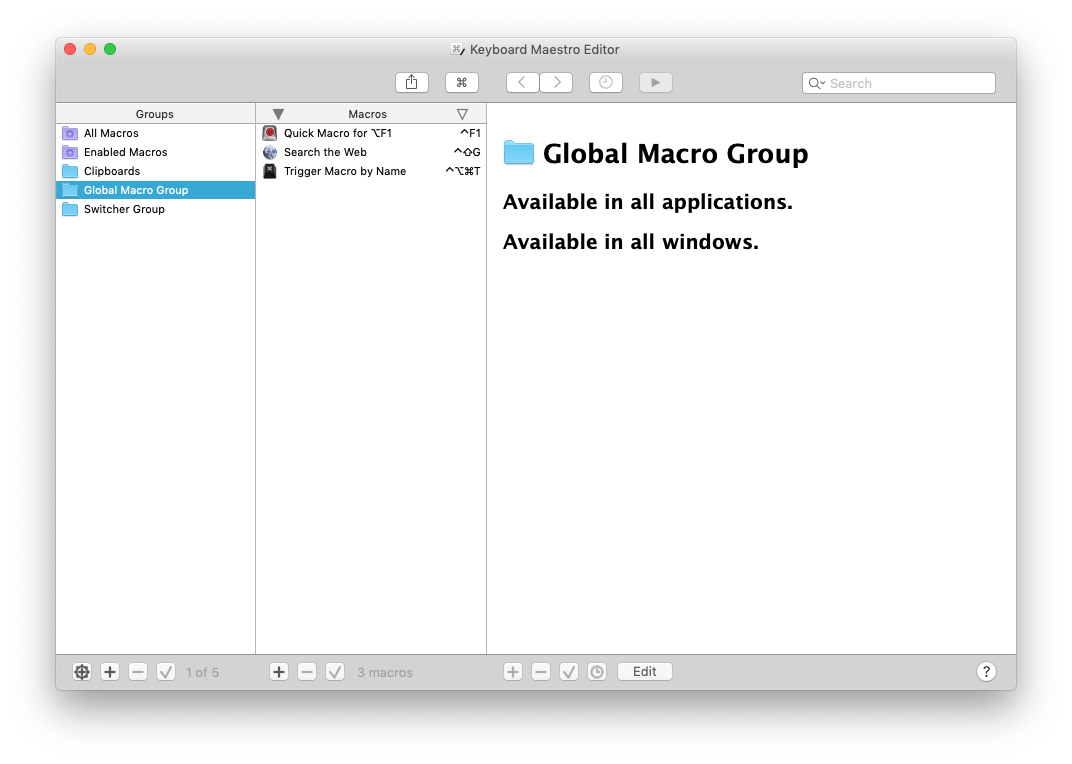
The Keyboard Maestro Application Palette displays a list of all the applications you currently have open and lets you switch between those applications with a click of a button.
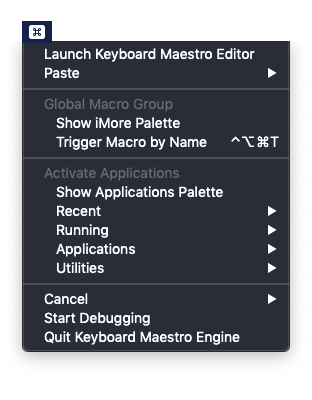
Keyboard Maestro’s Menu Item gives you quick access to saved macros and palettes and many of Keyboard Maestro’s other features.

NEXT: We’ll look at customizing Keyboard Maestro’s built-in features.


How to get started with Keyboard Maestro on Mac syndicated from https://bestpricesmartphoneweb.wordpress.com

Best bands for purple Fitbit Versa Lite

The Fitbit Versa Lite is a health and fitness smartwatch with a changeable band. There are a number of third-party bands out there designed to go with each of the colorways available for the Versa Lite. This list showcases some of the best bands you can buy for the Mulberry Aluminum Fitbit Versa Lite. Not all of these bands are the particular shade of purple that Fitbit calls Mulberry per se, and not all of them show the purple Fitbit in the photo. But all of these options will go beautifully with the Mulberry Aluminum Fitbit Versa Lite.

Milanese style

Find-MyWay Mesh Stainless Steel Bracelet

Staff Favorite

I’m a big fan of Apple’s Milanese Loop-style bands. They are comfortable, adjustable, and can be dressed up or down. The metal mesh allows air circulation. This one comes in an array of colors, including Deep Purple which is very similar to Fitbit’s Mulberry shade.

$13 at Amazon

Slender style

TOYOUTHS Leather Strap

This beauty tapers away from the watch for a more delicate look. While they don’t offer a color that’s an exact match to Mulberry Versa Lite, this sparkly shade would look great with it. If this color isn’t for you, there are 17 different colors including florals and more traditional leather textures.

$12 at Amazon

Sporty style

Fintie Sport Band

This simple silicone sport band with a pin-and-tuck closure similar to the Apple Sport Band matches the Mulberry Versa Lite beautifully. While it’s not much different than the band that comes with your Fitbit, it does come in three other colors so you can change up your look.

$6 at Amazon

Sporty loop

GeeRic Nylon Sports Loop

Another Apple-style band, this woven nylon sport loop has a hook-and-loop closure and is fully adjustable so you don’t have to worry about being between sizes. The shade shown here, Purple, will complement rather than match the Mulberry Versa Lite. There are seven colors in all from which to choose.

From $9 at Amazon

Fancy band

Wearlizer Stainless Steel Band

This colorful stainless steel band would be a fun upscale look with the Mulberry Versa Lite. If you prefer a more neutral look, there are eight color choices in all. The rest of them are more traditional and sedate metal colors.

$18 at Amazon

Fabric options

NANW Woven Fabric Strap

This premium woven fabric band is flexible, breathable, lightweight, and comfortable. There are several amongst the 16 different color options that would go beautifully with the Mulberry Versa Lite.

From $9 at Amazon

Creative patterns

Moretek Silicone Wristband

You’re certainly not limited to solids and subtle stripes. These pretty patterns make your Fitbit Versa Lite a fun statement piece. Choose from six different creative patterns and two solids.

$9 at Amazon

Adventurous spirit

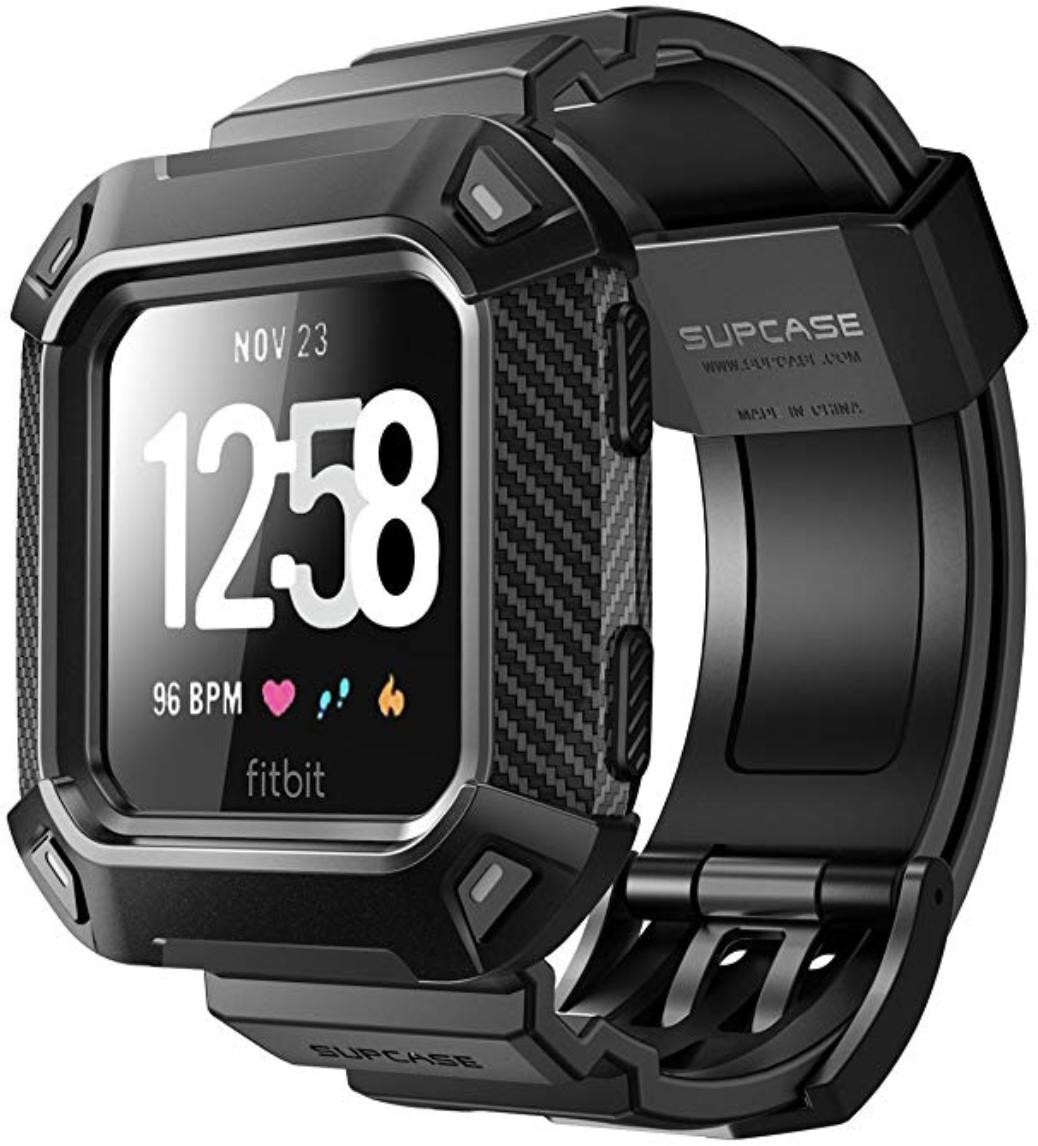
SUPCASE Protective Replacement Wristband

If you tend to hit the outdoors pretty hard, you might like a bit of armor like this for your Fitbit Versa Lite. Whether you’re into rock climbing, cliff-diving, or perhaps you work in construction, this small investment could keep your Fitbit intact. It doesn’t come in colors, but it covers up the Mulberry aluminum.

$19 at Amazon

Classic Leather

KADES Geniune Leather Strap

If you like the look of a traditional leather watchband, check out what KADES has to offer. If you don’t necessarily want to match the Fitbit Versa Lite exactly, there are 17 other color options besides the one shown here, including some that sparkle.

$13 at Amazon

Nike style

UMTELE Two-Toned Breathable Wristband

This one’s modeled after Apple’s Nike Sport Band, with its perforated breathable style. It’s a great option for your sweatiest, wettest workouts. It comes in ten different two-tone colorways and each comes with a screen protector.

$10 at Amazon

Colorful trio

Wepro Band 3-Pack

If you like the regular silicone band style and want to stock up, this is an economical way to build your Versa Lite’s band collection. Get three different sport bands for one low price. Choose from 15 color combinations.

$10 at Amazon

Protect the screen

NANW Screen Protectors

Whether you want to change up the look of your Fitbit Versa Lite or just give it a bit of protection, this trio has you covered. You’re not limited to these three colors, however, there are actually 11 different trios from which to choose.

$9 at Amazon

Which one should you choose?

If I had to pick just one band to supplement the silicone band that comes with the Mulberry Aluminum Fitbit Versa Lite, I’d go with the Find-MyWay Mesh Stainless Steel Bracelet. Apple’s Milanese Loop is my favorite of the Apple Watch band styles, and numerous companies have copied that style for a reason. It’s elegant enough to wear on the dressiest of occasions, yet it doesn’t feel overdone or out of place with your athleisure wardrobe. As someone whose wrist always seems to be between the buckle holes, I like that this band adjusts as needed and is held in place with a magnet. The mesh style keeps the metal from feeling heavy on the wrist, so it’s comfortable to wear all the time.

If stainless steel and mesh don’t appeal to you, you can’t go wrong with a classic leather look. It takes your smartwatch from the realm of fitness gear and elevates it to a timeless-looking timepiece. KADES Genuine Leather Strap looks elegant and it comes in 18 different colors and styles. Among the options, you can find bold stripes and blingy sparkles. Some are colorful and some are more traditional leather shades.


Best bands for purple Fitbit Versa Lite syndicated from https://bestpricesmartphoneweb.wordpress.com

How to get started with Keyboard Maestro on Mac

Creating macros on your Mac is incredibly easy with Keyboard Maestro and we show you the basics right here.

Keyboard Maestro is a super-charged $36 macro creation application that, if you ever try it, could (and probably should) be an essential part of your daily work routine.

An Introduction to Keyboard Maestro

Keyboard Maestro is so powerful that we’re going to spend a few days here looking at the application’s features, play with some of the productivity tools baked in to the app, create some macros of our own, create new keyboard shortcuts to trigger those macros, create palettes to trigger macros with the click of a button, and gain a solid understanding of just how powerful creating a few macros can be in helping you simplify repetitive tasks.

Following is a short list of just a few of the things you can do with Keyboard Maestro:

  • Launch Applications
  • Switch applications
  • Switch windows
  • Run AppleScripts
  • Copy, move, rename, trash, and delete files
  • Manipulate windows
  • Create application and macro palettes
  • Add boilerplate text to email and other documents
  • Send SMS or iMessages
  • Control iTunes

This list is by no means complete, No joke, there’s almost nothing you can’t do with Keyboard Maestro, so let’s go!!

What You Need To Get Started

The current version of Keyboard Maestro requires that you’re running Yosemite (10.10) or later on your Mac. Here’s how you can check to see if Keyboard Maestro will work on your Mac:

  1. Click the Apple Menu
  2. Select About This Mac
  3. Verify that you Mac says Yosemite with a version number of at least 10.10 or later just below your operating system name

If it does, download Keyboard Maestro using this link.

If it doesn’t, not to worry, you may still be able to perform most of what we talk about here using an older version of Keyboard Maestro, which you can download here.

Install Keyboard Maestro

After Keyboard Maestro downloads, drag the application from your Downloads folder to your Mac’s Applications folder.

Once there, give it a double-click to open it.

Change Your System Settings

Because Keyboard Maestro performs some of its magic by monitoring your keyboard input you’re going to need to allow the application to have access to your keyboard input information. The first time you launch Keyboard Maestro you’ll see a message saying that it requires Accessibility Access.

When you see this, click the button that says, Open Preferences.

When System Preferences opens you should see something like this:

NOTE: If this isn’t what System Preferences looks like for you, you can:

  1. Open System Preferences.
  2. Open the Security & Privacy preference.
  3. Click the Privacy tab.

That will get you where you need to be for the next step.

To allow Keyboard Maestro the appropriate access:

  1. Click the lock in the lower-left corner of System Preferences.
  2. Authenticate as an administrator.
  3. Put checks in the boxes for Keyboard Maestro and Keyboard Maestro Engine.
  4. Close System Preferences.

Let’s Take a Quick Look Around

We’ll go into more detail in the next few articles, but let’s take a quick look around.

There are four things you should see when Keyboard Maestro first opens:

  • Keyboard Maestro Welcome Window
  • Keyboard Maestro Editor
  • Keyboard Maestro Application Palette
  • Keyboard Maestro Menu Item

The Keyboard Maestro Welcome Window is designed to give you a quick introduction to Keyboard Maestro. Using this you can view the Keyboard Maestro tutorial, view the Keyboard Maestro Quick Start Website, and get assistance and access to frequently asked questions.

You use the Keyboard Maestro Editor to create, manage, and edit Keyboard Maestro macros and palettes.

The Keyboard Maestro Application Palette displays a list of all the applications you currently have open and lets you switch between those applications with a click of a button.

Keyboard Maestro’s Menu Item gives you quick access to saved macros and palettes and many of Keyboard Maestro’s other features.

NEXT: We’ll look at customizing Keyboard Maestro’s built-in features.


How to get started with Keyboard Maestro on Mac syndicated from https://bestpricesmartphoneweb.wordpress.com

Best bands for purple Fitbit Versa Lite

The Fitbit Versa Lite is a health and fitness smartwatch with a changeable band. There are a number of third-party bands out there designed to go with each of the colorways available for the Versa Lite. This list showcases some of the best bands you can buy for the Mulberry Aluminum Fitbit Versa Lite. Not all of these bands are the particular shade of purple that Fitbit calls Mulberry per se, and not all of them show the purple Fitbit in the photo. But all of these options will go beautifully with the Mulberry Aluminum Fitbit Versa Lite.

Milanese style

Find-MyWay Mesh Stainless Steel Bracelet

Staff Favorite

I’m a big fan of Apple’s Milanese Loop-style bands. They are comfortable, adjustable, and can be dressed up or down. The metal mesh allows air circulation. This one comes in an array of colors, including Deep Purple which is very similar to Fitbit’s Mulberry shade.

$13 at Amazon

Slender style

TOYOUTHS Leather Strap

This beauty tapers away from the watch for a more delicate look. While they don’t offer a color that’s an exact match to Mulberry Versa Lite, this sparkly shade would look great with it. If this color isn’t for you, there are 17 different colors including florals and more traditional leather textures.

$12 at Amazon

Sporty style

Fintie Sport Band

This simple silicone sport band with a pin-and-tuck closure similar to the Apple Sport Band matches the Mulberry Versa Lite beautifully. While it’s not much different than the band that comes with your Fitbit, it does come in three other colors so you can change up your look.

$6 at Amazon

Sporty loop

GeeRic Nylon Sports Loop

Another Apple-style band, this woven nylon sport loop has a hook-and-loop closure and is fully adjustable so you don’t have to worry about being between sizes. The shade shown here, Purple, will complement rather than match the Mulberry Versa Lite. There are seven colors in all from which to choose.

From $9 at Amazon

Fancy band

Wearlizer Stainless Steel Band

This colorful stainless steel band would be a fun upscale look with the Mulberry Versa Lite. If you prefer a more neutral look, there are eight color choices in all. The rest of them are more traditional and sedate metal colors.

$18 at Amazon

Fabric options

NANW Woven Fabric Strap

This premium woven fabric band is flexible, breathable, lightweight, and comfortable. There are several amongst the 16 different color options that would go beautifully with the Mulberry Versa Lite.

From $9 at Amazon

Creative patterns

Moretek Silicone Wristband

You’re certainly not limited to solids and subtle stripes. These pretty patterns make your Fitbit Versa Lite a fun statement piece. Choose from six different creative patterns and two solids.

$9 at Amazon

Adventurous spirit

SUPCASE Protective Replacement Wristband

If you tend to hit the outdoors pretty hard, you might like a bit of armor like this for your Fitbit Versa Lite. Whether you’re into rock climbing, cliff-diving, or perhaps you work in construction, this small investment could keep your Fitbit intact. It doesn’t come in colors, but it covers up the Mulberry aluminum.

$19 at Amazon

Classic Leather

KADES Geniune Leather Strap

If you like the look of a traditional leather watchband, check out what KADES has to offer. If you don’t necessarily want to match the Fitbit Versa Lite exactly, there are 17 other color options besides the one shown here, including some that sparkle.

$13 at Amazon

Nike style

UMTELE Two-Toned Breathable Wristband

This one’s modeled after Apple’s Nike Sport Band, with its perforated breathable style. It’s a great option for your sweatiest, wettest workouts. It comes in ten different two-tone colorways and each comes with a screen protector.

$10 at Amazon

Colorful trio

Wepro Band 3-Pack

If you like the regular silicone band style and want to stock up, this is an economical way to build your Versa Lite’s band collection. Get three different sport bands for one low price. Choose from 15 color combinations.

$10 at Amazon

Protect the screen

NANW Screen Protectors

Whether you want to change up the look of your Fitbit Versa Lite or just give it a bit of protection, this trio has you covered. You’re not limited to these three colors, however, there are actually 11 different trios from which to choose.

$9 at Amazon

Which one should you choose?

If I had to pick just one band to supplement the silicone band that comes with the Mulberry Aluminum Fitbit Versa Lite, I’d go with the Find-MyWay Mesh Stainless Steel Bracelet. Apple’s Milanese Loop is my favorite of the Apple Watch band styles, and numerous companies have copied that style for a reason. It’s elegant enough to wear on the dressiest of occasions, yet it doesn’t feel overdone or out of place with your athleisure wardrobe. As someone whose wrist always seems to be between the buckle holes, I like that this band adjusts as needed and is held in place with a magnet. The mesh style keeps the metal from feeling heavy on the wrist, so it’s comfortable to wear all the time.

If stainless steel and mesh don’t appeal to you, you can’t go wrong with a classic leather look. It takes your smartwatch from the realm of fitness gear and elevates it to a timeless-looking timepiece. KADES Genuine Leather Strap looks elegant and it comes in 18 different colors and styles. Among the options, you can find bold stripes and blingy sparkles. Some are colorful and some are more traditional leather shades.


Best bands for purple Fitbit Versa Lite syndicated from https://bestpricesmartphoneweb.wordpress.com

New Motorola Moto G7 series price cuts available now

Since Motorola launched the Moto G7 smartphone series in the US some months back, all G7 models have seen price cuts at some point or another. Now, the unlocked Moto G7, Moto G7 Power, and Moto G7 Play are once again discounted, although not directly by Motorola. To get tempting discounts on these three phones, you currently have to purchase them from Best Buy.

At this very moment, Motorola is selling the regular Moto G7 (pictured above) for $299.99, but Best Buy lets you get it for $269.99, no strings attached. Prices go even lower when you activate the phone on select carriers. With …
New Motorola Moto G7 series price cuts available now syndicated from https://bestpricesmartphoneweb.wordpress.com

Saturday, June 29, 2019

The first Emergency in Wizards Unite may not have been all we had hoped for

When you compare it to Pokémon GO this event is pretty subpar

We all need to remember that Harry Potter: Wizards Unite does not exist in a vacuum. This isn’t Niantic’s first rodeo or even second, this is its third Augmented Reality game, and as such, a lot of the slack I would normally give a company is used up.

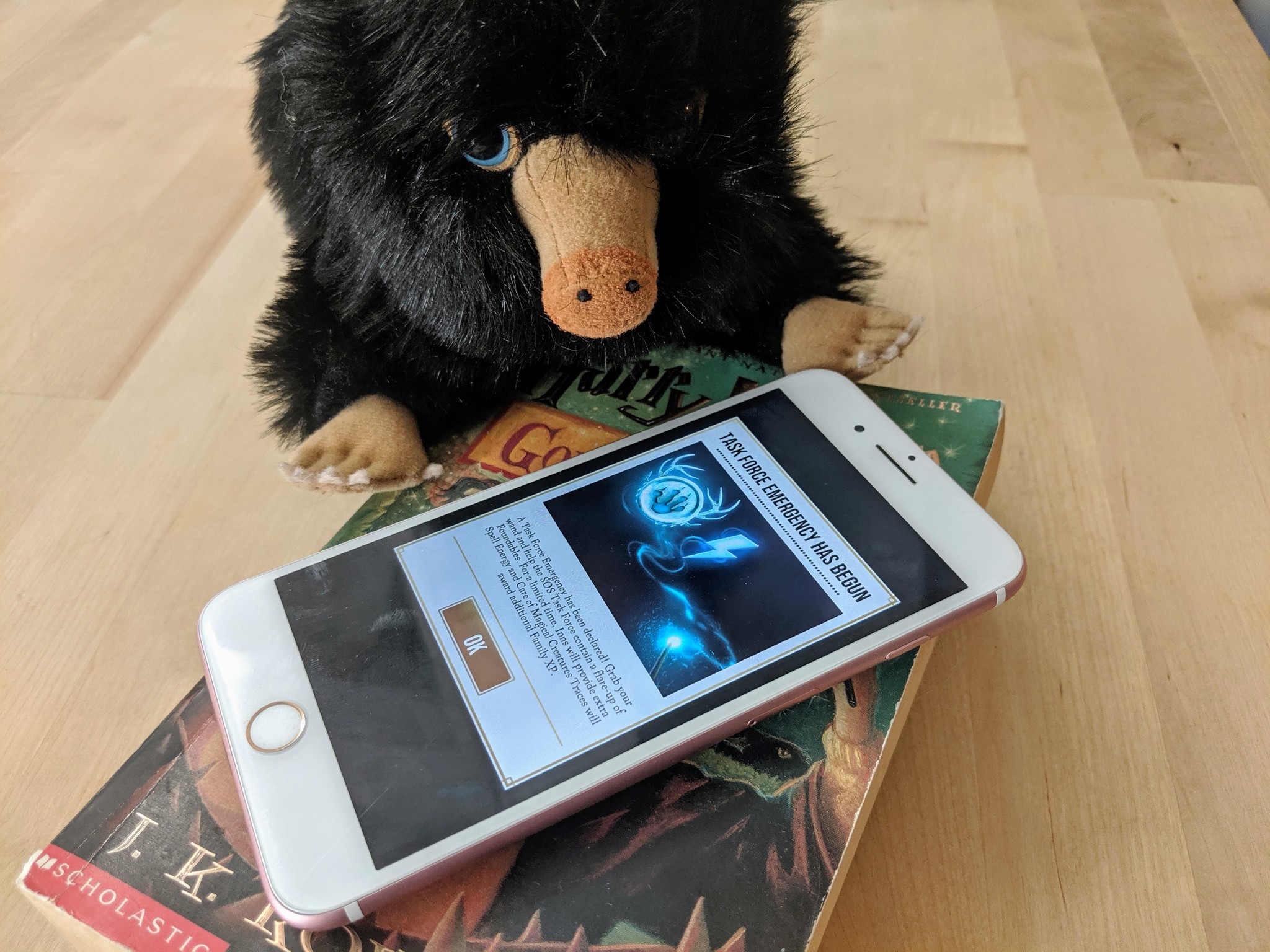
Wizards Unite had its first “Community day” style event, called a Task Force Emergency, on June 29, 2019, and by all reports, it did not excite people in the way Niantic may have hoped. There are a lot of people including us here at iMore who found the whole event to be something of a non-starter.

Comparisons have to be made

There is no getting around it, everything Wizards Unite tries to do will be compared to Pokémon GO. It’s inevitable and not really a bad thing. Pokémon is one of the largest mobile games of all time and is the direct predecessor to Wizards Unite. When I look at the events and general gameplay of Wizards Unite I expect them to be as good, if not better than Pokémon GO.

So let’s talk about Community days a little. A Pokémon community day focuses on one particular Pokémon, and greatly increases the spawn rate of it, while also giving you new attacks to upgrade it with. The idea behind community days is to catch as many of that one Pokémon as possible so you can evolve it to its highest form.

And maybe that is where the Task Force Emergency falls down, it didn’t have a purpose or any benefit that we could see. The Emergency was supposed to be an influx of Foundable spawns in general, with double family XP awarded for Care of Magical Creatures Foundables, and the Inns would give you extra spell energy. But that was it. There was no clear goal, and no real reward for the day—just a chance to get a few more of what you already had.

What went wrong?

There were a few issues with the Emergency that we could see. The first being the lack of any measurable increase in spawn rates. When a Pokémon GO community event happens, there is a huge influx of that one Pokémon. In this event, there wasn’t much of an increase in Foundables, so it didn’t feel different at all. As you can see from the above pictures there is a measurable difference between the spawn rates on the two games.

Even when they did finally spawn, the Traces were never something worthwhile. Community day gave you a chance to potentially get something you hadn’t been able to before. It didn’t matter if that Pokémon never spawned near you normally, you would still be able to catch them in large numbers. Nothing about the Traces changed in the Emergency, you got the same low-level Flubberworm and Kneazles you always get, with maybe a few Severe or Emergency-level here and there.

To get the most out of the Emergency event, it seemed to do best with three Dark Detectors on Inns. This would make more Foundables show up, though you weren’t guaranteed any more Care of Magical Creatures Foundables, which was a big part of the event. I got exactly one high-level Care of Magical Beasts Trace, but unfortunately, it vanished after the second spell cast.

So how could we make it better?

I think this needed to be either more general or more specific. I know that sounds weird but if it were more specific — if it was one Family Frame that appeared much more frequently — then you would reach a goal, Prestiging that frame, which would them make this event worthwhile.

A recent post on Reddit) may help explain why we had so much trouble with the event. Perhaps Niantic didn’t do it wrong, we just misunderstood. Despite it saying a “Flare-up” of Foundables, Niantic didn’t actually say that the Care of Magical Beasts Traces would increase, only that we would get more XP from them.

Honestly, the entire Emergency would have been saved if the world map had been littered with Magical Beast Traces like the world first thought. If the area was flooded with them you would have fun just catching them, rather than worrying that they are all something you already have.

There is one last thing that could have helped the Emergency and it is a problem I have with the game in general. Give me more actual XP for capturing Foundables, as well as more Family XP. In this way, the grind feels worthwhile, as you are increasing your ability to catch things, not just increasing a stat that makes little difference in the game. This is an issue for the whole game, not just these events, and it needs to be addressed soon.

Conclusion

While this was Niantic’s first event on Wizards Unite it isn’t its first event ever. There is no real reason for it to have been so dull and unrewarding. With a few tweaks, this could have been really fun, but it was lackluster instead like they had phoned it in. I really hope Niantic takes the community feedback onboard and moves forward in a positive way.

Let us know how you felt about the first Task Force Emergency and how it could be improved in the future.

Harry Potter accessories we love

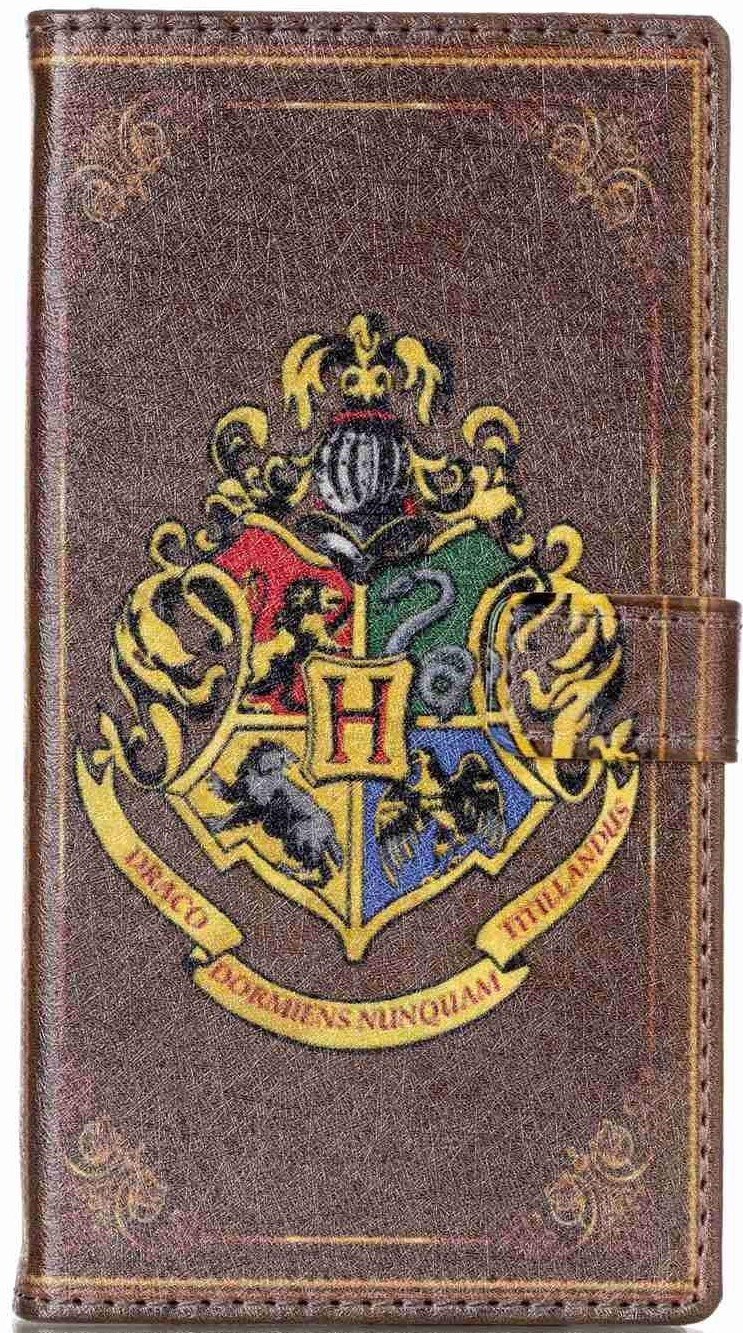
Hogwarts phone case

$10 at Amazon

Show your love of the Potterverse, and protect your phone with this beautiful faux-leather case. The Hogwarts crest burns bright on the front with plenty of room inside for some cash and cards too.

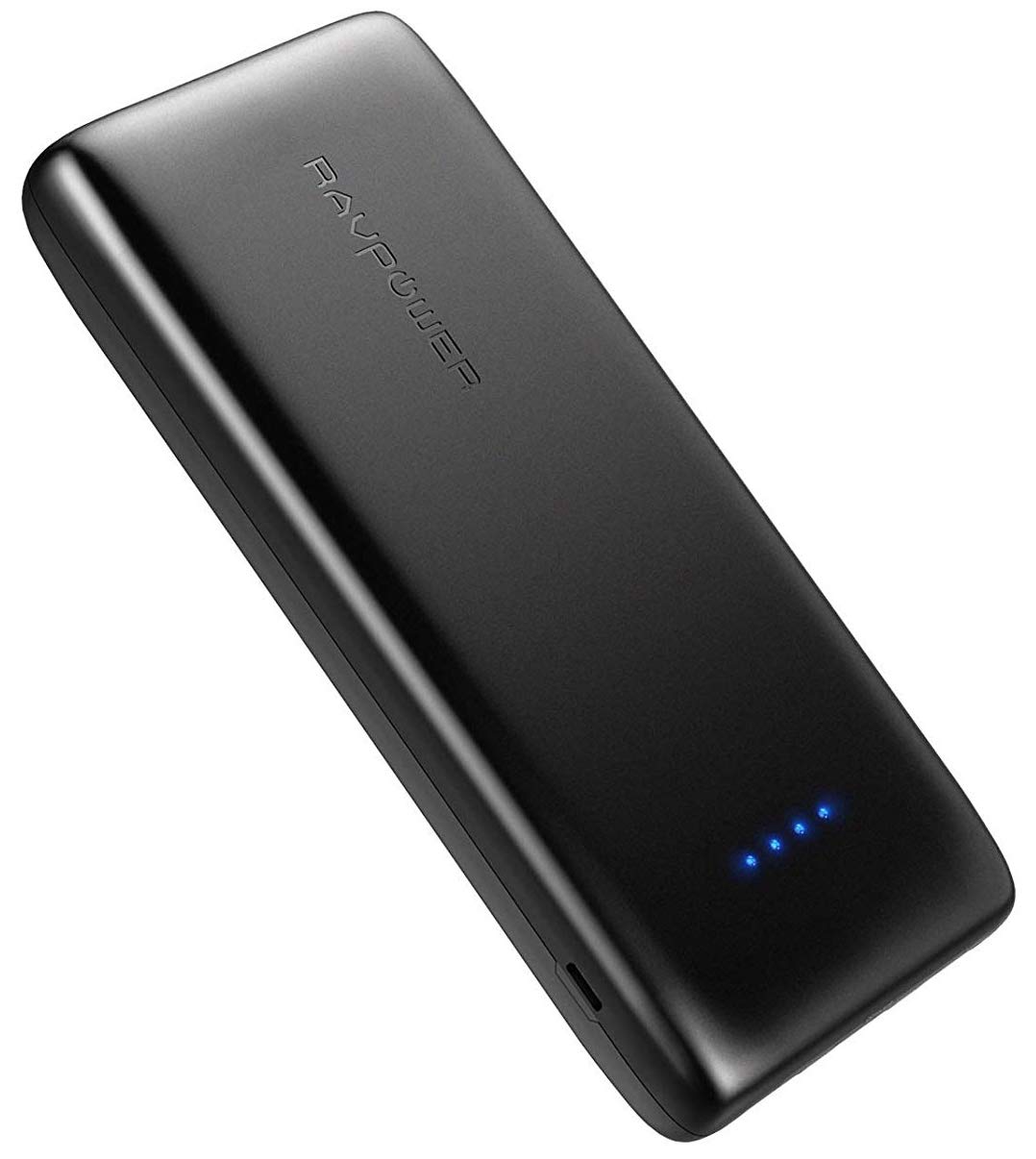
RAVPower Ace

$40 at Amazon

You don’t want to run out of juice while battling baddies in Fortresses, now do you? Make sure you’ve got backup power with this quality but inexpensive

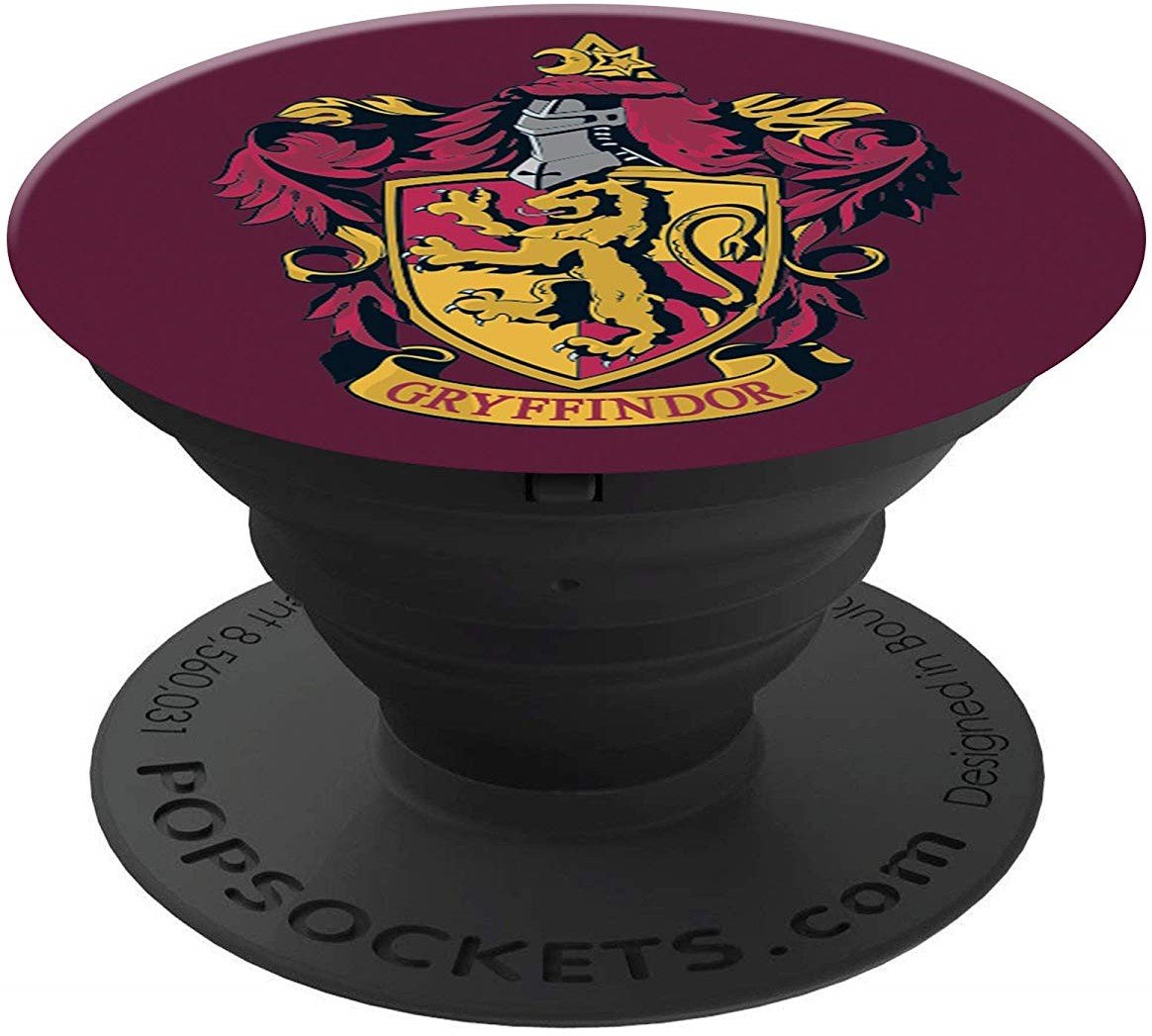
Hogwarts House PopSocket

$15 at Amazon

Represent your house with a secure way to grip your phone while walking on your magical adventure casting spells and securing Foundables.

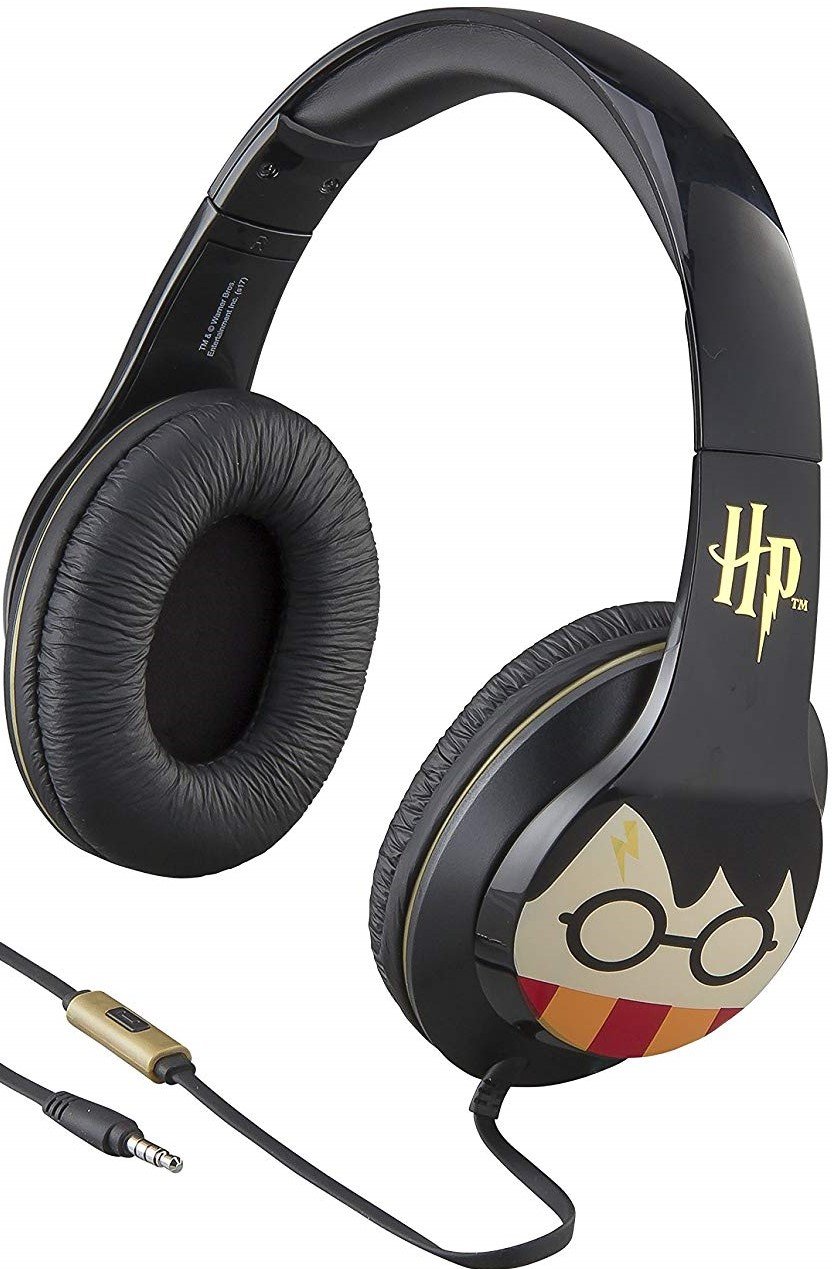
Harry Potter Over The Ear Headphones

$25 at Amazon

Show your love of Harry Potter to the whole world, while shutting that same world out with these funky headphones from ihome.


The first Emergency in Wizards Unite may not have been all we had hoped for syndicated from https://bestpricesmartphoneweb.wordpress.com

How to get started with Keyboard Maestro on Mac

Creating macros on your Mac is incredibly easy with Keyboard Maestro and we show you the basics right here. Keyboard Maestro is a supe...