
Two new Maps app features arrive this fall
The Maps app for iPhone and iPad will receive a terrific update later this year when iOS 13 and iPadOS 13 are released, respectively. The two biggest new features include the ability to keep track of favorite locations and introduction of Collections, which you can use to build lists of local must-see spots and spaces.
How to create favorite locations on the iPhone and iPad
Favorites in the new Maps app are located near the top of the screen. At launch, it will include your Home and Work location, when applicable. Under each Favorite, you’ll see in real-time the amount of time it will take to get to the place from your current location.
To add a location:
- Tap the + icon under Favorites.
- Type in your location in the search box under Add Favorite. You can type in name or address.
- On the same page, you can also tap the Siri icon to use search with your voice.
- Tap the + to add the location.
- On the same page also, you can select a location by tapping the **+* for a place under Siri Suggestions.
- Regardless of how you added a location, you can change the label.
- On the Details page, select the type of location.
- Tap Add Person under Share ETA if you want to share your location with someone whenever you’re traveling to your favorite location.
- Select Done at the top right-hand side of the screen to save your Favorite.
To delete Favorites:
- On the main Maps page, tap See All next to Favorites.
- Choose Edit at the bottom right of the screen.
- Tap the – to the left of the favorite you want to delete.

How to create Collections in the new Maps app
Imagine that you’re planning a trip to London and want to identify and save areas of the city that you want to visit. By grouping everything in one location, you have a better idea where the hot spots are before you even arrive at your destination.
To create a Collection:
- On the main Maps page, tap the New Collection box under Collections.
- Add a name for the Collection.
- Tap Create at the top right of the screen.
To add locations to a Collection:
- Tap the newly created Collection.
- Select Add a Place.
- Search for your location to add by typing it into the search box.
- Under Suggestions, tap the + next to the correct location.
- Repeat Steps 3 and 4 to add more locations to your Collection.
- Tap Done at the top right when you are done adding locations.
Explore your Collection locations:
- Under your Collection, tap on a location to learn more.
- Tap Directions to find out how to get to the location.
- Tap Flyover, when applicable to take a closer look at the area.
- On the main location screen, you’ll find information pulled from Wikipedia and TripAdvisor, depending on the popularity of the location.
- From this screen, you can also tap Add to Favorites to add the location to your must-see list.
- Or Create New Contact based on the location.
- Or Add to Existing Contact.
- Or Report an Issue if there is a problem with the location listing.
- Near the top of the location screen, you can also tap Add to to include the location in another Collection.
- Tap Share to send the location information to others through Messages or Mail, or to other apps on your device.
To remove locations from your Collection:
- On a Collections page in Maps, scroll from right to left.
- Tap Share to send the information to others.
- Tap Delete to remove the location from your Collection.
Great accessories for your iPhone
Apple AirPods
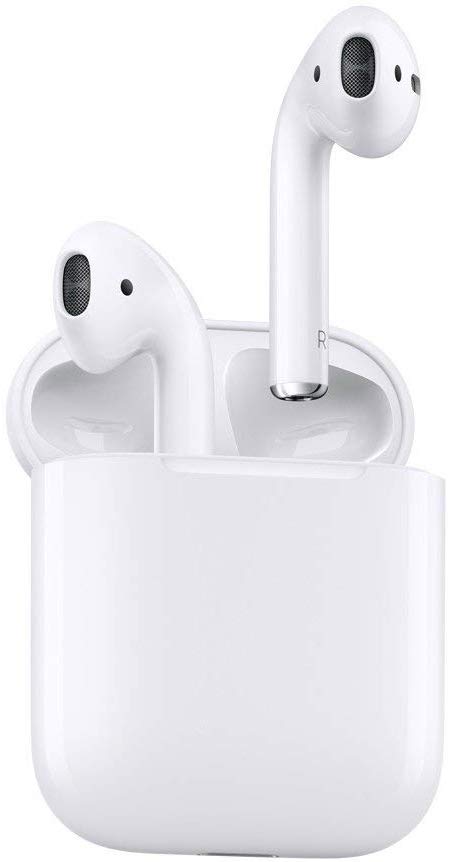
These earphones will connect easily and wirelessly to your Mac, and can quickly switch between your various Apple devices.
Catalyst Case
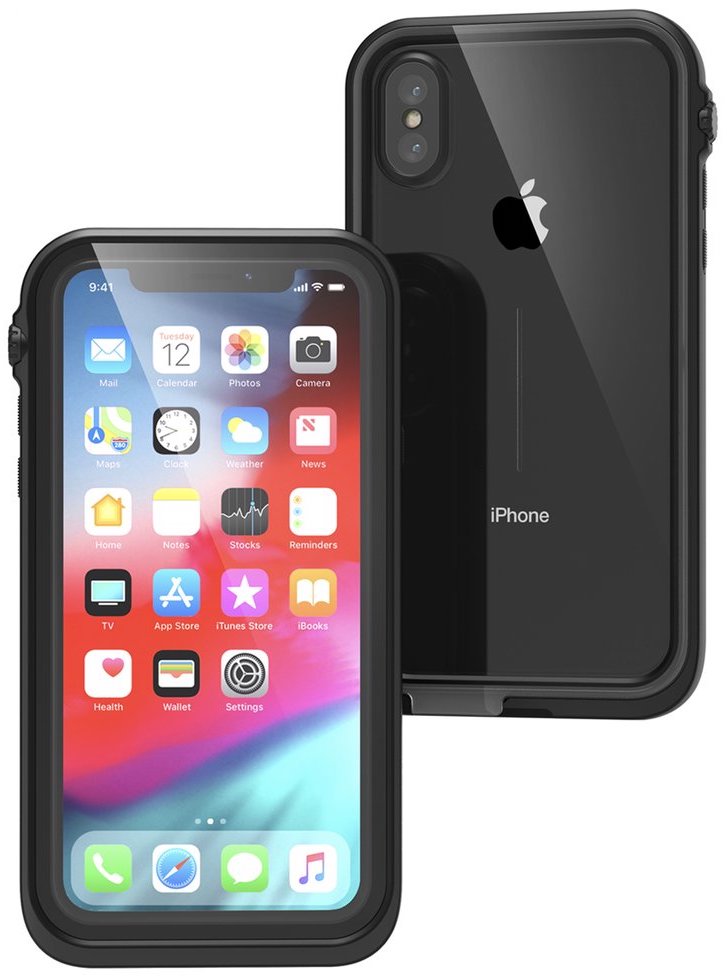
The best, most reliable waterproof case is getting the iPhone XS upgraded with up to 10-meter waterproof protection and 2-meter drop protection. It’s also designed with acoustic membranes for clearer call audio and the best touchscreen film technology around.
Questions?
If you have any questions about using Maps Favorites or Collctions on iPhone or iPad, let us know in the comments.
<!–
–>
How to use the new features in the Apple Maps app syndicated from https://bestpricesmartphoneweb.wordpress.com




No comments:
Post a Comment